Pluga is a no-code integration platform that lets you connect over 100 apps, including Sirnia, to create automated workflows. You can build them from scratch or use the pre-built automation templates.

The Pluga integration is available for free to all Sirnia users.

How it works
Pluga lets you send information between Sirnia and other apps, automating data collection. It’s a fast, easy-to-use, visually intuitive tool that requires zero coding expertise. Browse the Sirnia integrations page to see available app options, including popular pre-made workflows that can be used as templates.

Pluga’s free plan is limited to two-step automations. For multiple steps, you’ll have to upgrade to a paid plan.
Connect to Pluga
First, create a Pluga account or log in if you already have one. Then, select one of the ready-made Sirnia integration templates or click the
Create Automation button in your header to build your automation from scratch.
Enter a name for your automation and click
Confirm to continue. 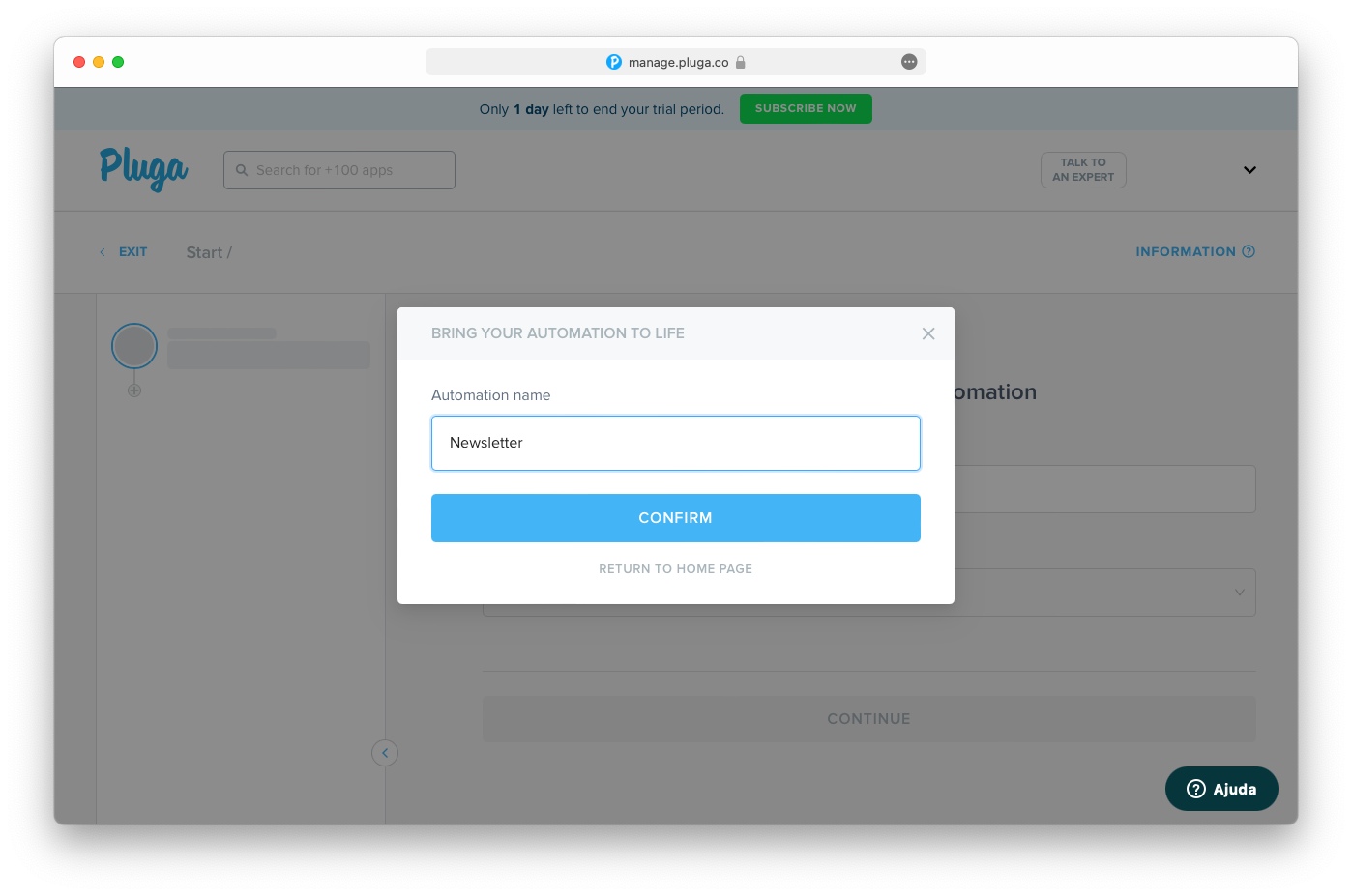
In the
App dropdown, select Sirnia. Then, select New response on Sirnia as the trigger. This means that each Sirnia form submission will trigger the automation process.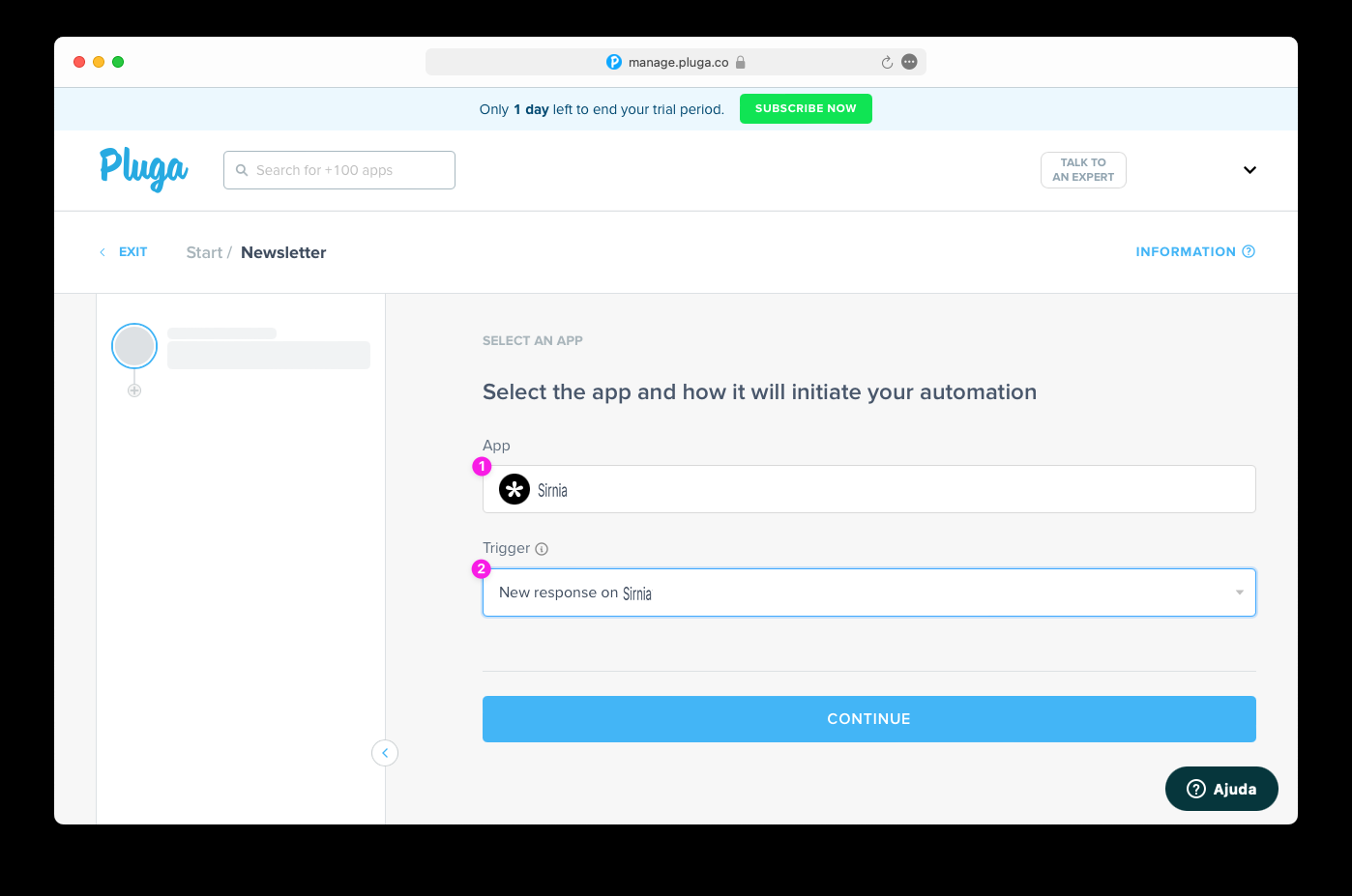
Follow the setup process by connecting your Sirnia account. You only need to complete this step once. Once you’ve connected Sirnia, it will be listed as an available connection for other workflows.

Use the dropdown to select which Sirnia form you want to connect and click
Continue.
The next step is to add an action, which will be performed after the trigger. For example, creating a new lead on a CRM app, sending a follow-up email, or adding a new row to a spreadsheet.
Click the
Connect New App button and select the action app you want to connect. If you already have an account connected to Pluga for the action app, select it from the accounts listed.
We’ll use Google Sheets as an example and select
Insert row in spreadsheet as the action.
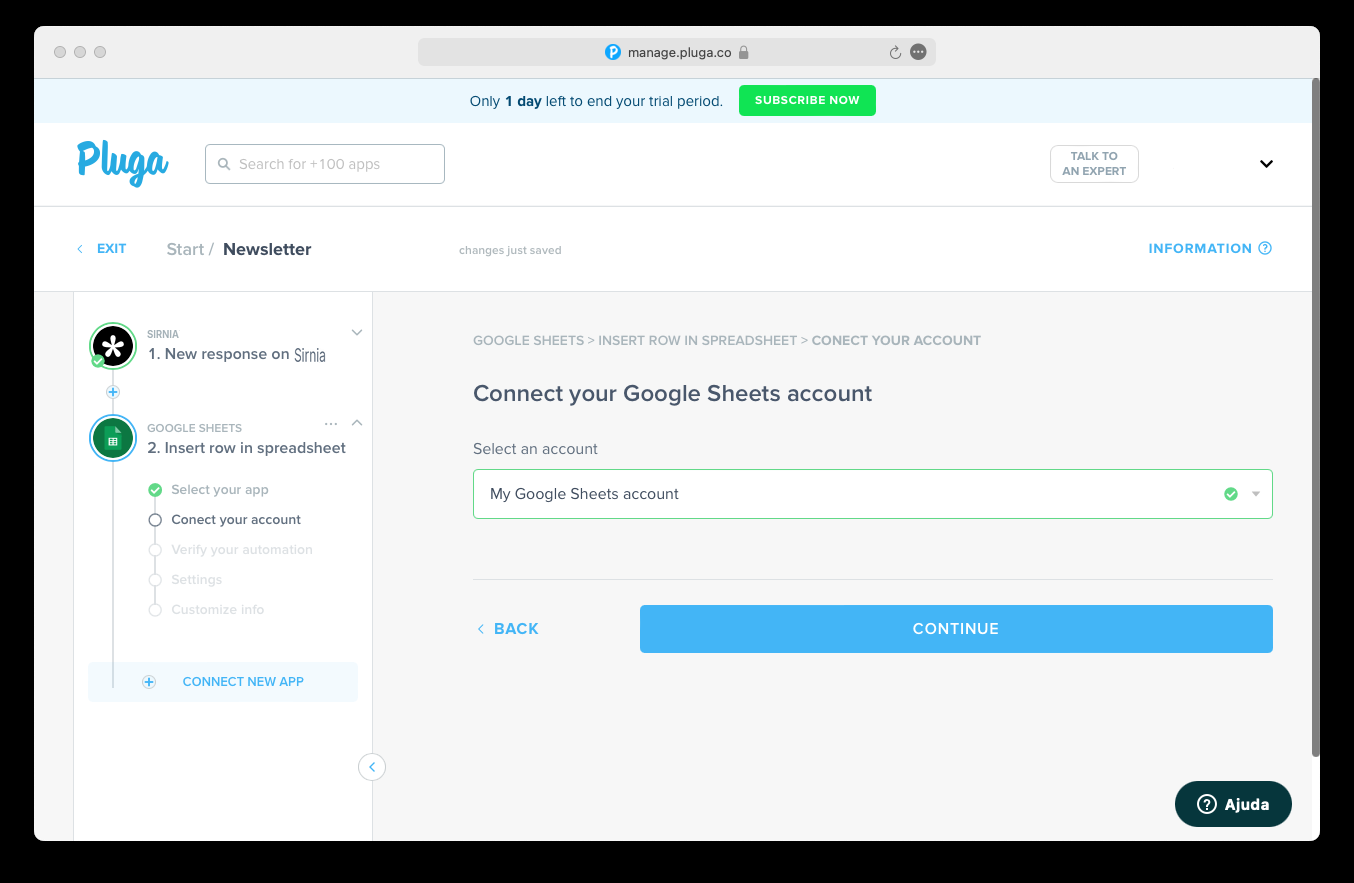
In the next step, you’ll be prompted to connect your selected action app by logging in and naming your account.
Select the spreadsheet and the sheet you want to use for adding new rows. Then, click
Continue.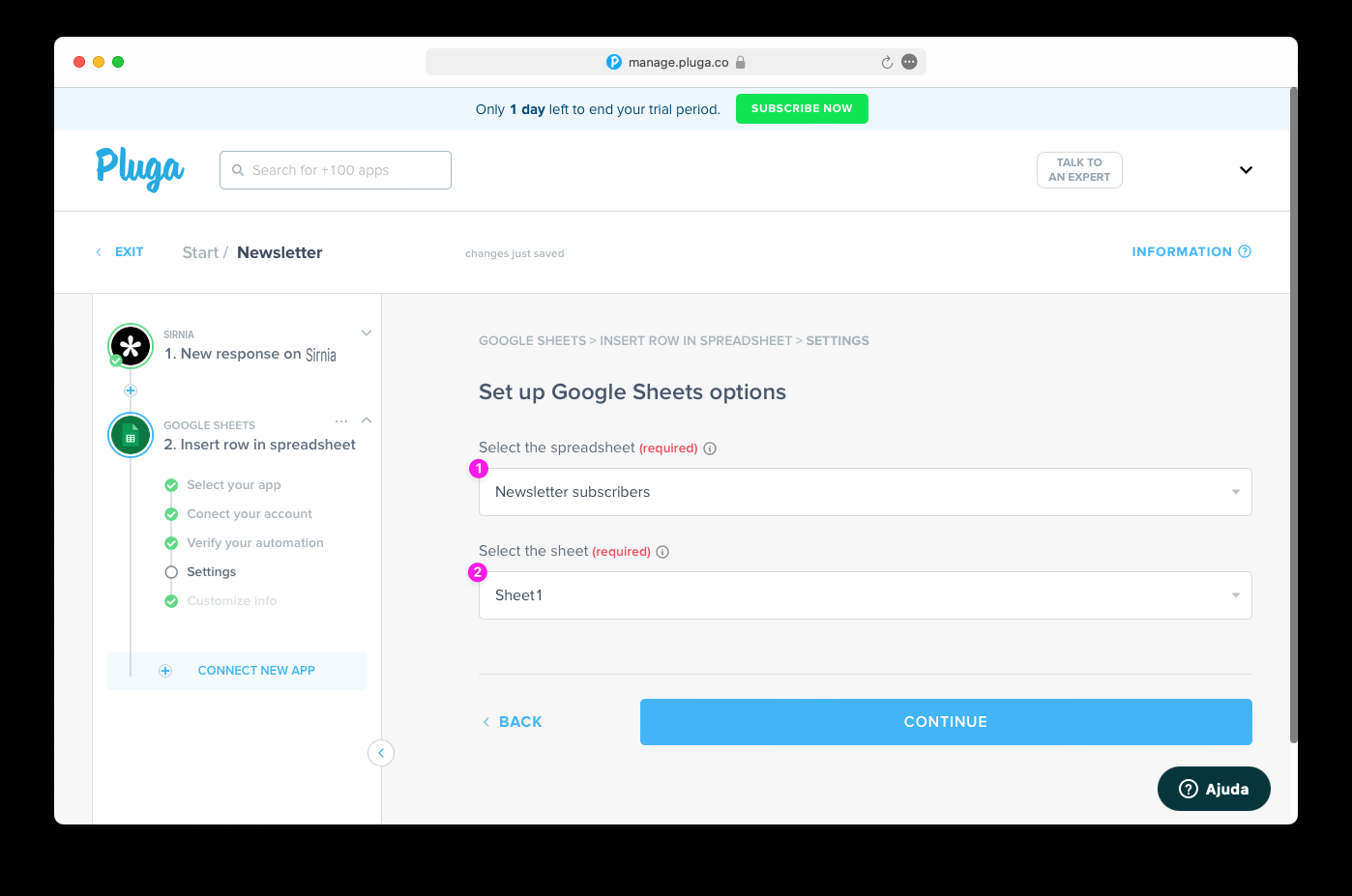
For the last step, you'll need to name the columns in your Google Sheet and select which input fields from your Sirnia form will be added to each cell. In this example, we want to collect email addresses and the date respondents subscribed to our newsletter.
Add the corresponding Sirnia fields by clicking the
Column value. To insert more columns, click the Add Column button.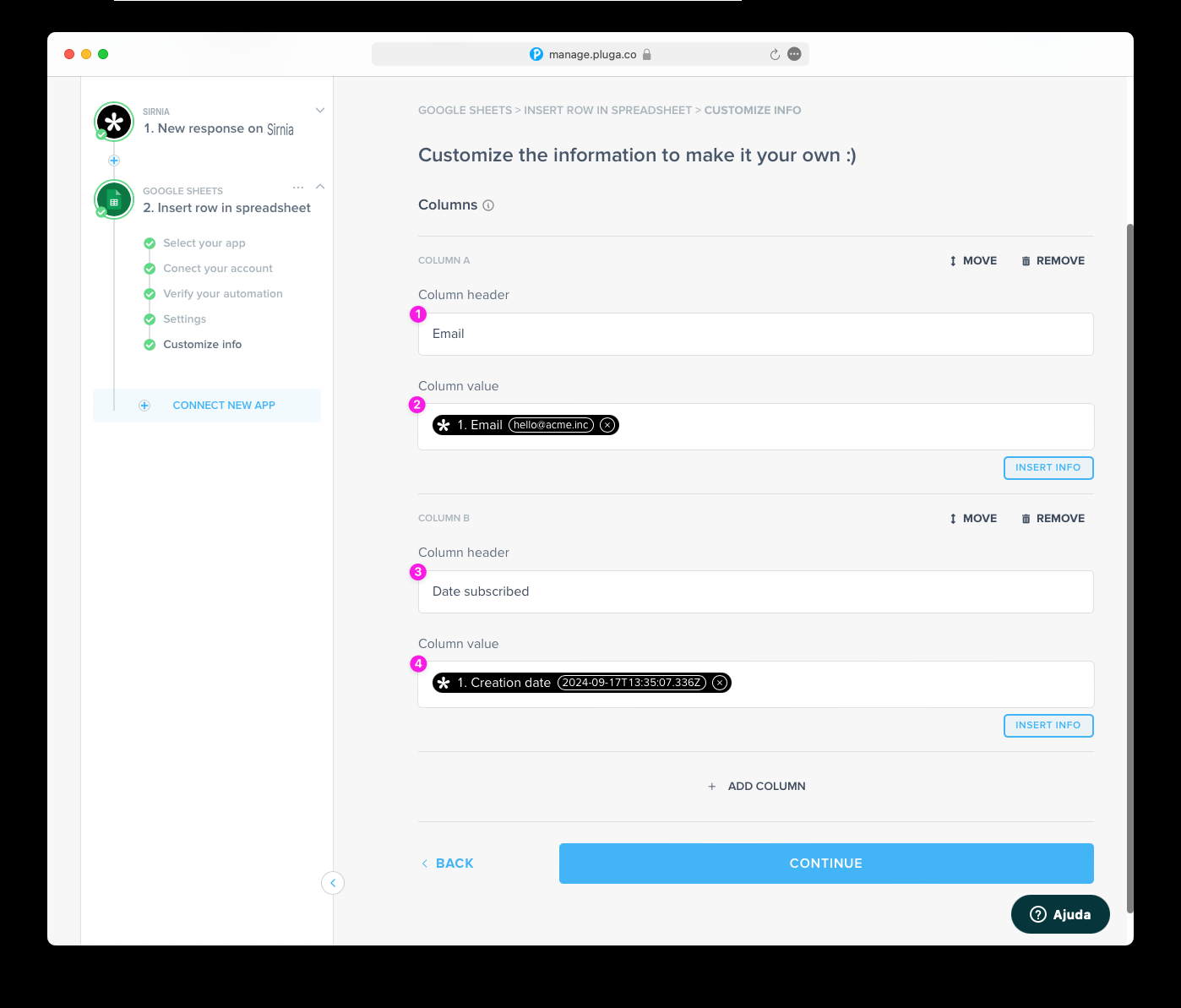
That’s it! After clicking
Continue, you’ll see if the integration was set up successfully. From here, you can also add another action or click Finish Automation.
Why should you use Sirnia as a Form Builder for Pluga?
The Pluga integration is popular because it gives Sirnia users an easy way to automate what happens after someone submits a form. It’s built for small and mid-sized teams that want reliable workflows without coding or complex tools.
- Simple, no-code setup
Non-technical users can connect Sirnia to CRMs, spreadsheets, email tools and chat apps in minutes.
- Instant lead and intake routing
Form submissions turn automatically into CRM records, mailing-list updates, notifications or tasks, removing manual work and speeding up follow-up.
- Fits the typical SMB toolstack
Pluga integrates with the apps most growing companies already use, making it straightforward to keep data in sync.
- Affordable and accessible
A free plan and low-cost tiers make automation possible even for small teams.
- Powerful enough without being complex
Multi-step workflows and basic logic help teams automate real processes while keeping things manageable.
→ back to Integrations